Once you’ve created a couple of custom attributes in the team settings, you can assign values to these attributes through the Archilogic Editor.
You require at least editing access to assign or edit custom attribute values
Custom attribute values can be assigned through the Archilogic Editor or the API
Assign a custom attribute value to a Floor
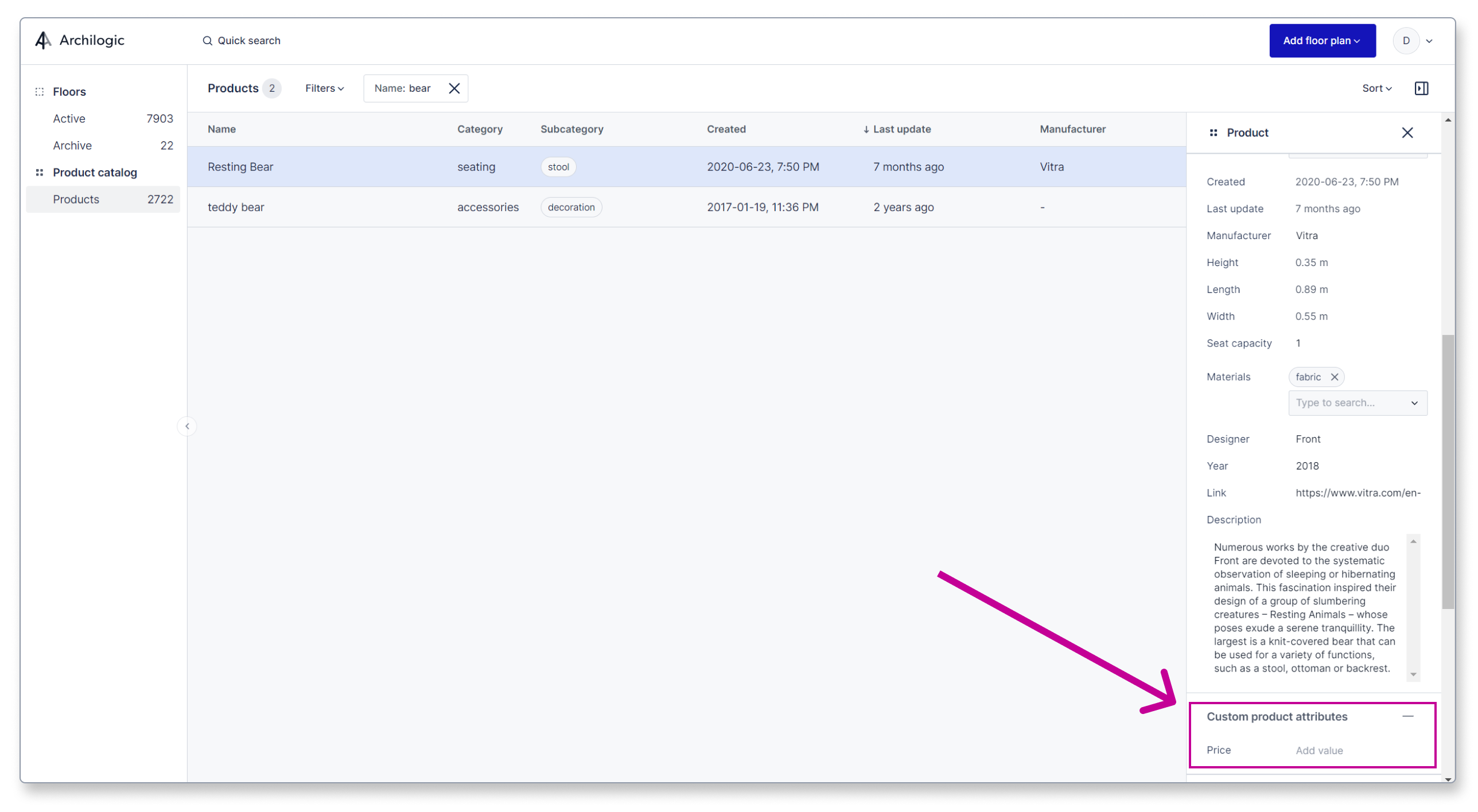
Open the floor plan in the Archilogic Editor.
Left-click the empty space next to the floor plan in the Editor canvas to select the floor.
Make sure you can see "Floor" on top of the inspector panel before continuing.
Once selected, you’ll find the custom attributes of the type "floor" in the inspector panel on the right side of the window.
If you can't find the custom attribute field you're looking for, left-click the plus icon in the custom attribute section.
Left-click the field next to the custom attribute label to assign a value.
Assign a custom attribute value to a Space
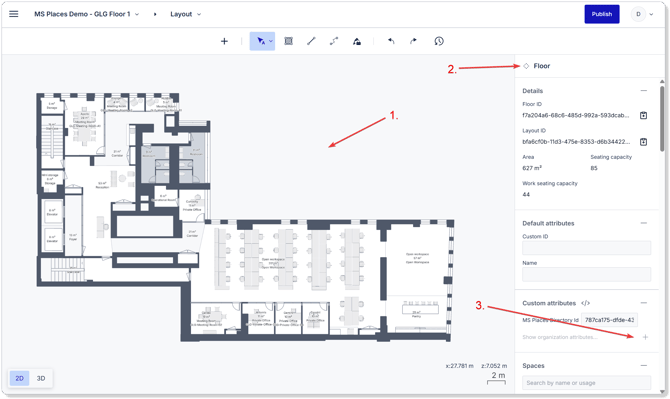
Open the floor plan in the Archilogic Editor
Then left-click a space to which you wish to assign a custom attribute value. Make sure to left-click the empty area of the space and not a furniture piece within it!
Make sure you can see "Space" on top of the inspector panel before continuing.
Once selected, you’ll find the custom attributes of the type "space" in the inspector panel on the right side of the window.
If you can't find the custom attribute field you're looking for, left-click the plus icon in the custom attribute section.
Left-click the field next to the custom attribute label to assign a value.
Assign a custom attribute value to an Asset or a Component instance
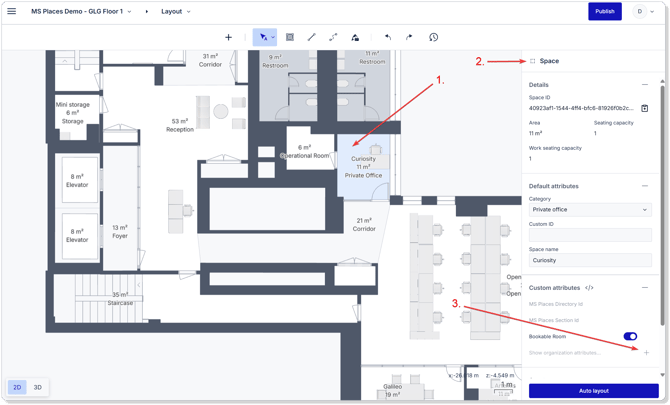
Open the floor plan in the Archilogic Editor
Then left-click an asset or a component instance to which you wish to assign a custom attribute value.
Make sure you can see "Asset" or "Component Instance" on top of the inspector panel before continuing.
Once selected, you’ll find the custom attributes of the type "asset" in the inspector panel on the right side of the window.
If you can't find the custom attribute field you're looking for, left-click the plus icon in the custom attribute section.
Left-click the field next to the custom attribute label to assign a value.
Assign a custom attribute value to a Product
Assigning custom attributes to products is only possible if your Archilogic organization has access to the product catalog feature.
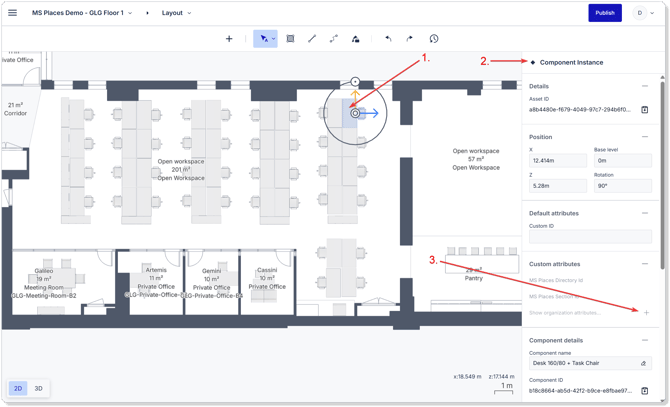
In the dashboard, switch from the Floors view to the Product catalog in the dashboard on the left side of the window.
Then left-click a product from the Products list in the center of the window.
Once you’ve selected a product, you’ll find the previously created custom attributes with the resource type “Product” at the bottom of the inspector panel on the right side of the window.
Left-click the field next to the custom attribute label to assign a value.